
Change an instruction and switch it on
Themes, rules, the draft, switching a version on, tagging recent sessions again and bringing an old version back.
Change an instruction and switch it on
Open the instruction from the list (Themes and rules under its name). Every change goes to the draft first. Sessions keep using the version in work until you press Switch on.
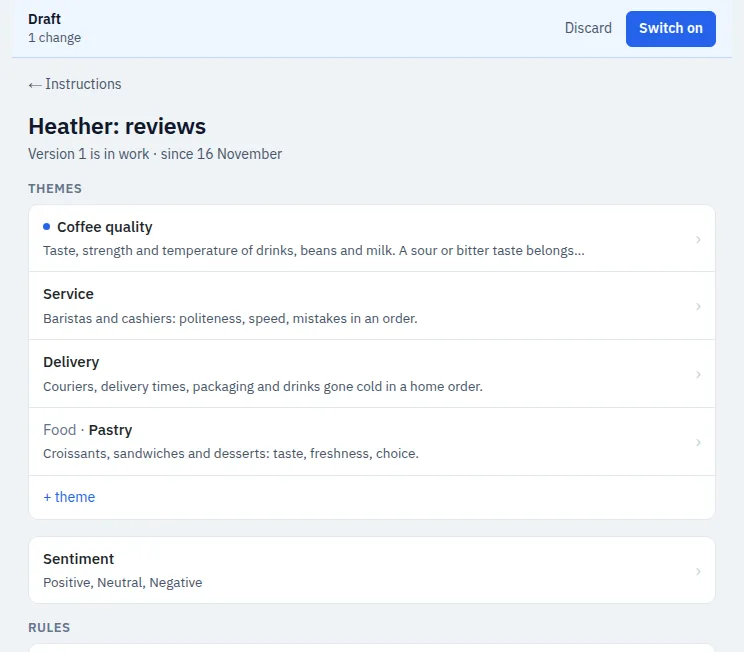
Change a theme
Click a theme, correct Belongs here and Does not belong here and press Save to draft. A dot next to the name marks a theme changed in the draft. + theme adds a new one; to put it into a group, start the name with the group in curly braces.
On the page of a theme there are four more actions:
- Rename: the new name will appear in old sessions too. Before you confirm, the screen shows how many sessions change.
- Merge with…: the messages of the other theme move to this one, and the other theme leaves the instruction.
- Split: one theme becomes two, each with its own description. After you switch the draft on, you can tag recent sessions again with the new themes.
- Delete: new sessions do not get this theme. In old sessions it stays with a mark that it was removed.
Nothing of this reaches sessions until you switch the draft on.
Add a rule
A rule settles a borderline case in one or two sentences, for example: “Queues belong to Service, not to Atmosphere.” Press + rule, write it and press Save to draft. Remove the rule takes it out.
Switch the draft on
The draft bar at the top shows how many changes there are. Discard throws them all away; the version in work does not change.
Switch on first checks the draft on your samples and compares it with the version in work: see Samples and the check. If the result suits you, press Switch on on the result screen and add a note if you want: it is shown in the version history. If the instruction has no samples yet, the draft is switched on without a check.
New sessions use the new version. Sessions already started do not change.
Tag recent sessions again
After switching on, maesense offers to tag sessions of the last 30 days again with the new version, up to 5 at a time. A new session is made next to the old one, which stays as it is. Manual edits move over where the theme is still in the instruction. The messages are taken from your quota, and the screen shows how many are left this month. Skip leaves the sessions as they are.
Bring an old version back
Version history lists every version with its date, author, note and changes. Bring this version back puts that version into the draft; then switch it on as usual. If there is a draft already, switch it on or discard it first.
Two people edit one instruction
Only one person edits a draft at a time. The others see The draft is being edited by… and can only read it. The owner of the brand can press Take over. If two people saved the same theme, the screen shows both texts and asks which one to keep: nothing is overwritten without a choice.
If something does not work
- The draft can only be read. Someone else is editing it. Wait or ask the owner of the brand to press Take over.
- An old version cannot be brought back. There is a draft: switch it on or discard it first.
- No checks left today. You can wait until tomorrow or press Switch on without a check. The version history marks such a version.