
Create an instruction
From scratch, from a marked file or as a copy: the steps, what you will see and what to do if something does not work.
Create an instruction
Press New instruction in the list of instructions and choose a way. Each way ends with a draft: sessions start using it only after you press Switch on.
You can create 5 instructions a week for a brand, by any way. The line Instructions this week on the first screen shows how many are left; the limit renews on Monday.
From scratch
Four steps: What to mark, Themes, Samples and Check. You can stop at any step: the instruction stays in the list with Continue, and a day after the start we send a reminder.
Step 1. What to mark
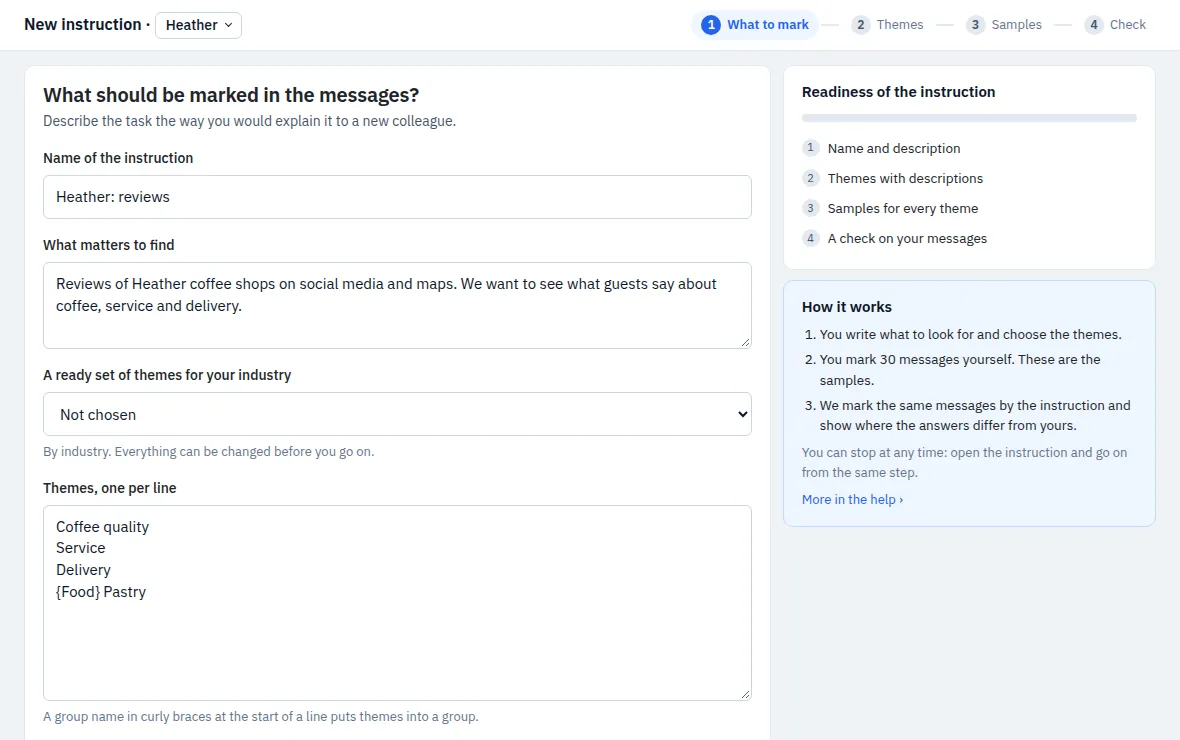
- Check the brand in the header. If you have several brands, choose one there.
- In What matters to find, describe the task the way you would explain it to a new colleague.
- Write the themes in Themes, one per line, or take A ready set of themes for your industry and change it. A group name in curly braces at the start of a line puts the theme into a group:
{Food} Pastry. - In What else to mark, leave the switches for sentiment and author on, or turn one off if the source already sets it. change sets the values or makes one value always the same.
- Press Next: themes.
Step 2. Themes
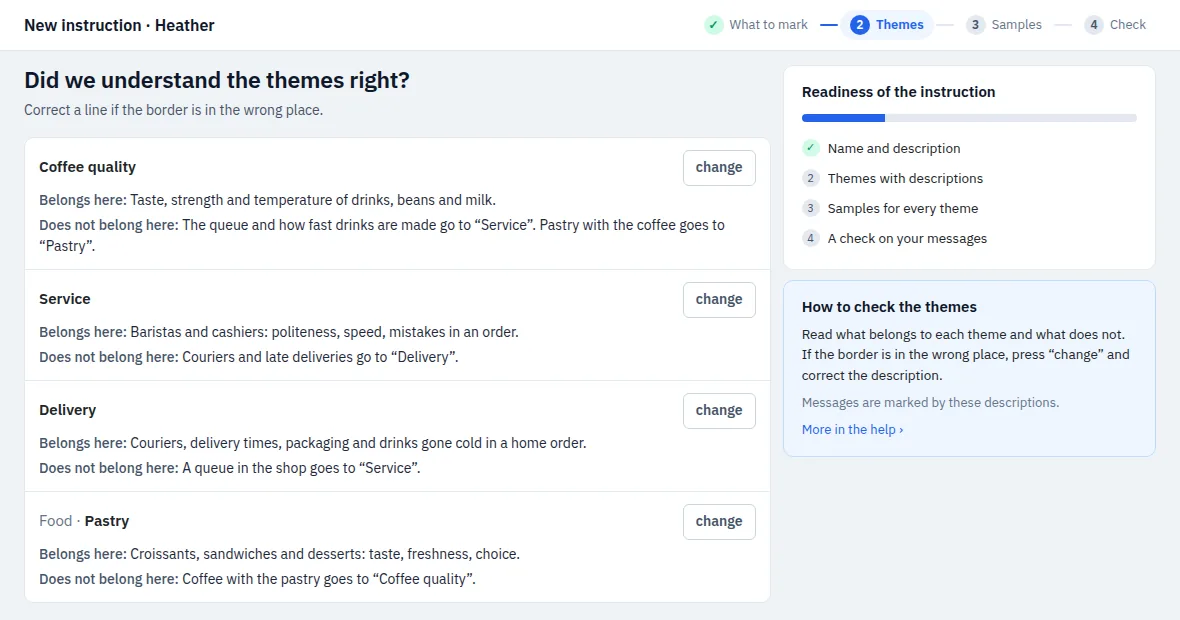
We write for every theme what belongs to it and what does not. It takes up to a minute; the page updates itself. Read each pair of lines: messages are marked by them. If a border is in the wrong place, press change and correct the text. Then press All correct, next.
Step 3. Samples
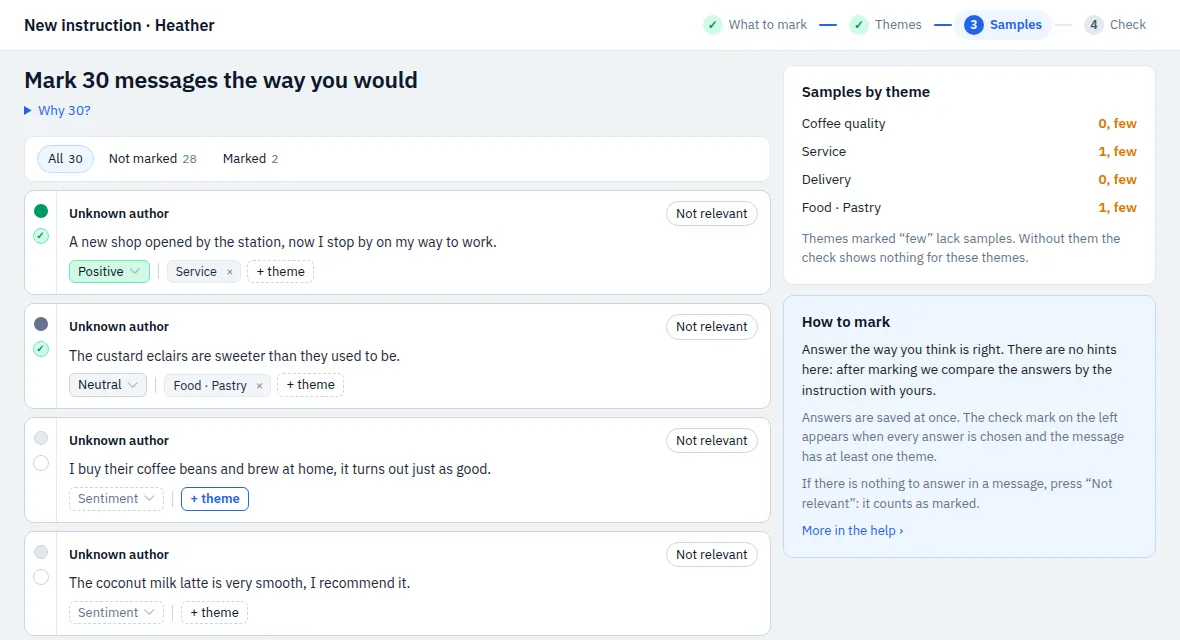
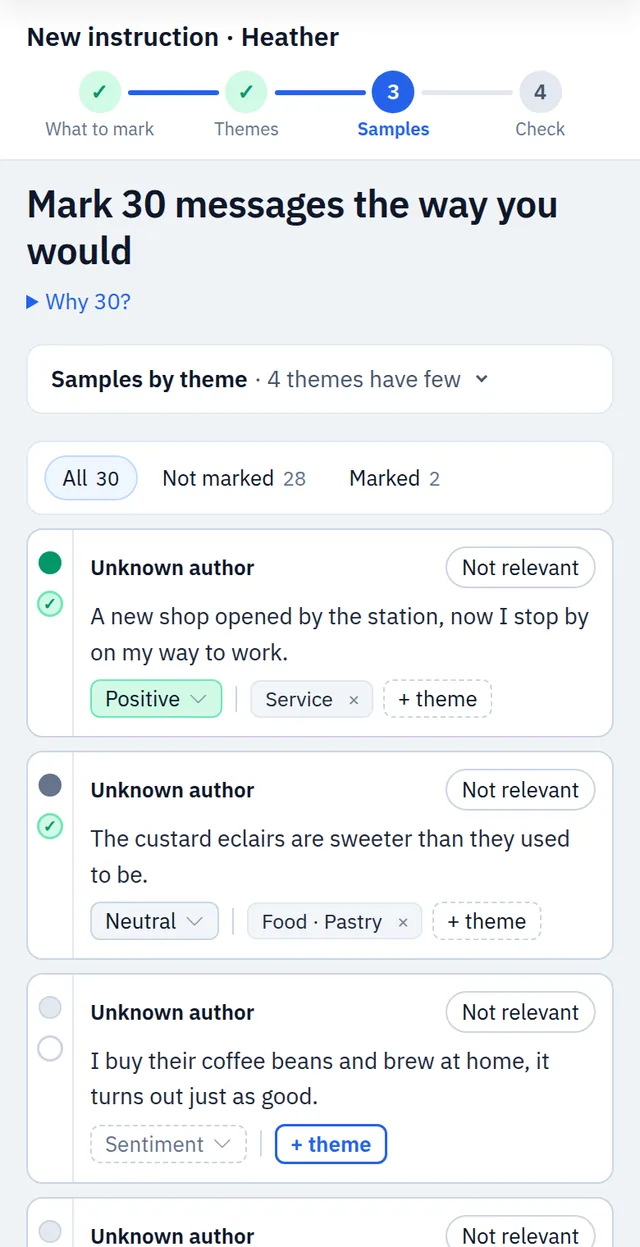
Mark 30 messages of the brand the way you would. There are no hints here: afterwards we compare the answers by the instruction with yours.
- Choose the sentiment and at least one theme. The check mark on the left appears when the message is marked. Answers are saved at once.
- If there is nothing to mark in a message, press Not relevant.
- If a theme is missing, press + theme on a card and add it. We write its two lines the same way as on step 2.
- Samples by theme shows themes marked “few”: without enough samples the check of such a theme shows nothing.
A third of these messages is put aside: the final result is counted on them, so it is fair. When everything is marked, press Next: check.
If the brand has few messages
When the brand has no messages yet or fewer than 30, the screen Add messages for the samples opens. Add your own:
- File: XLSX or CSV, one message per row, up to 5 MB. If there are several columns, you choose the one with the text.
- Paste text: separate messages with an empty line. Without empty lines every line is a message.
These messages are used only for the samples of this instruction. They do not appear under Messages, are not tagged in sessions and do not count toward limits.
Step 4. Check
We compare your answers with the answers by the instruction. Where they differ on several similar messages, we ask up to five short questions with examples:
- Yes, always: a rule is added to the instruction.
- No, it depends: the messages stay samples with your answer. If you write what it depends on, this text becomes a rule.
- I made a mistake: these samples take the answer of the instruction.
Then the instruction is checked on the messages put aside, and you see how often it answers like you. Press See the discrepancies to go through the messages where it differs, or Switch on when the result suits you.
From a marked file
Use this way when people already marked messages in a table. Four steps: File, Themes, Rules and Check.
1. Upload an XLSX or CSV file of up to 20 MB with one message per row and the marks people gave. Describe the task in What matters to find.
2. Point out the columns: the message text, sentiment, author and every column with themes. A column of 0 and 1 is a theme named after the column. From a big file we take 3000 random messages.
3. Check the theme descriptions. For a theme with fewer than 5 messages in the file choose to keep it, merge it with another theme or remove it.
4. Where the file and our reading differ, choose who is right: The file is right, The models are right — correct the sample or Not sure — remove the sample. Enough, next moves on.
5. Keep the rules you need from Rules we found in the marks and remove the rest.
A third of the file is put aside, and the instruction is checked on it at the end. Reading and checking a big file can take a few minutes: you can close the page, and we send a message when the result is ready. Then press Switch on or Open the draft.
A copy of an existing one
Choose the instruction, give the copy a name if you want and press Make a draft. Themes, descriptions and rules are copied. Samples stay with the original: mark new ones for the copy on the Samples screen. The copy opens as a draft.
If something does not work
- The weekly limit is spent. A new instruction can be created after the limit renews on Monday. Meanwhile you can change existing instructions.
- “Write in a sentence or two what the monitoring is about.” The field What matters to find is empty.
- A page waits for too long. Our part of the work goes on when the page is closed. If the screen says This is taking too long, press Try again.
- The draft was not switched on. Three days later we remind you. Open the instruction from the list and press Switch on, or discard the draft.