
Samples and the check
How to mark samples, check a draft before switching it on, read the result and get suggested edits.
Samples and the check
Samples are messages you marked yourself. Every new version of an instruction is checked on them before it is switched on, so you see whether a change helped before sessions use it.
Mark samples
On the page of the instruction open Samples and press Label 20 more (or Continue labeling). Mark the messages the way you would:
- choose the sentiment and at least one theme;
- press Not relevant if there is nothing to mark in a message.
Answers are saved at once. Later keeps what is marked; Done finishes the portion.
A part of the samples is put aside for checks: these test messages are not shown one by one, so the check stays fair. If there are too few of them, the Samples screen advises to mark more, and names the themes that have nothing to check on yet.
Check a draft
Press Switch on on the draft bar of the instruction, then Check. The draft and the version in work answer the same samples; it takes a minute or two, and the page updates itself. The line Checks left today shows how many checks remain.
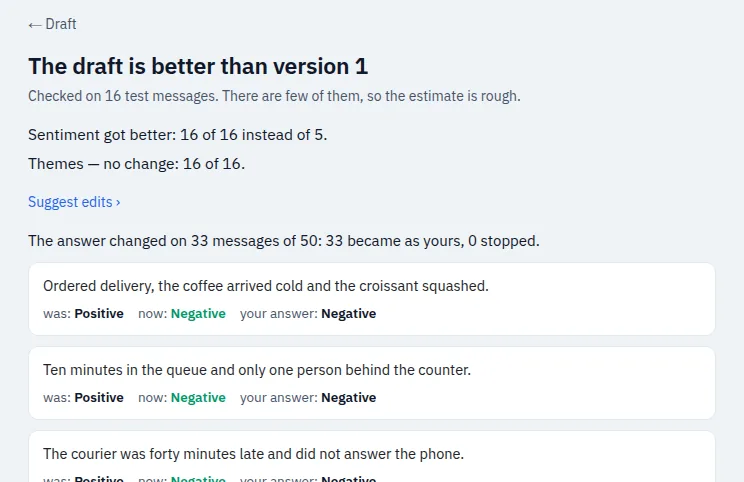
Read the result
- The headline says whether the draft is better, worse or not better than the version in work.
- Each line compares one kind, for example “Sentiment got better: 16 of 16 instead of 5.” “No change” means the difference is random.
- Below are the messages where the answer changed: what it was, what it is now and your answer.
- If there are few test messages, the screen says the estimate is rough. Mark more samples to make it precise.
If the draft is better or the same, press Switch on. If something got worse, the screen asks again: Switch on anyway or go back to editing.
For the first version of a new instruction the result shows how often it answers like you. See the discrepancies opens the messages where it differs: choose My answer is right, I agree with the suggestion or Both fit.
Suggest edits
Suggest edits on the page of the instruction compares your samples with how the instruction marks them now and suggests changes to theme descriptions and rules where they differ. Take each one into the draft or turn it down, then check the draft as usual. Up to 10 requests a day for a brand; the screen shows how many are left.
Disputed samples
When people answered differently on the same samples, the instruction page shows Disputed samples. Make the questions groups them into a few questions with examples. Fix the samples corrects the answers; Make it a rule also adds a rule to the draft. These questions use the same daily requests as suggested edits.
Samples that need a look
After a theme description or a rule changes, some samples may be out of date. The Samples screen shows them as check or decide. Open the list and confirm or change each answer.
If something does not work
- No checks left today. New checks will be available tomorrow. You can also Switch on without a check: the version history marks such a version.
- The check did not finish. Press Check again. If it fails again, the draft can be switched on without a check.
- No edits to suggest. Your samples and the instruction agree, or there are too few messages of one kind. Mark more samples.